
App Store screenshots, drafted by your agent and finished by you
An AI agent like Claude Code lays out the slides, writes and translates the captions, and renders every App Store size. Whatever you want to change, you change on the canvas of a native Mac app. Free and open source, with no account and no upload.
- macOS 10.15 or later
- Apple silicon and Intel
- Notarized by Apple
- MIT licensed
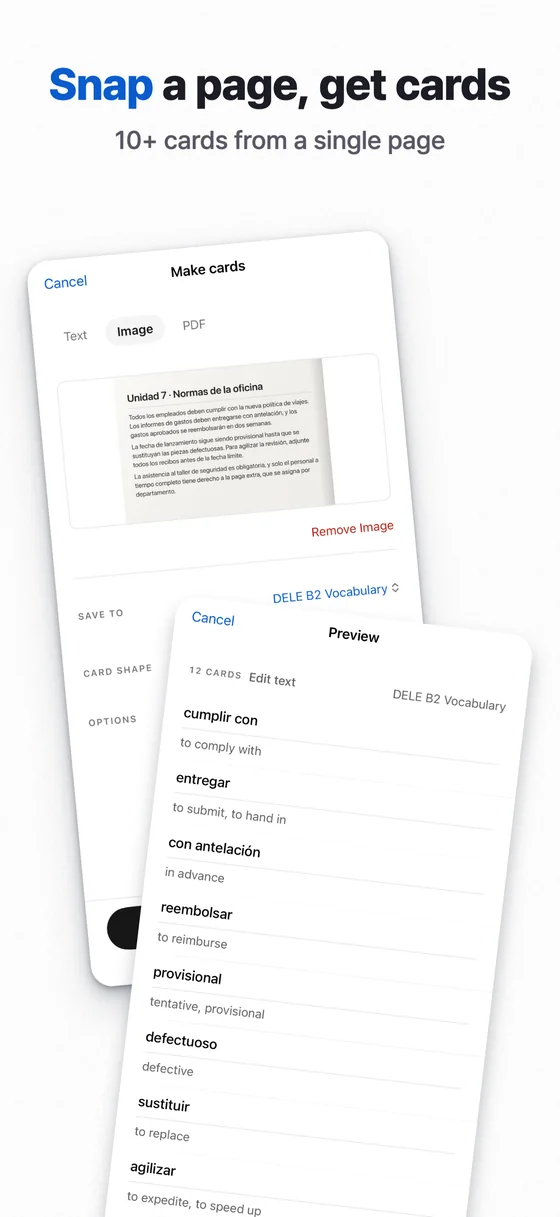
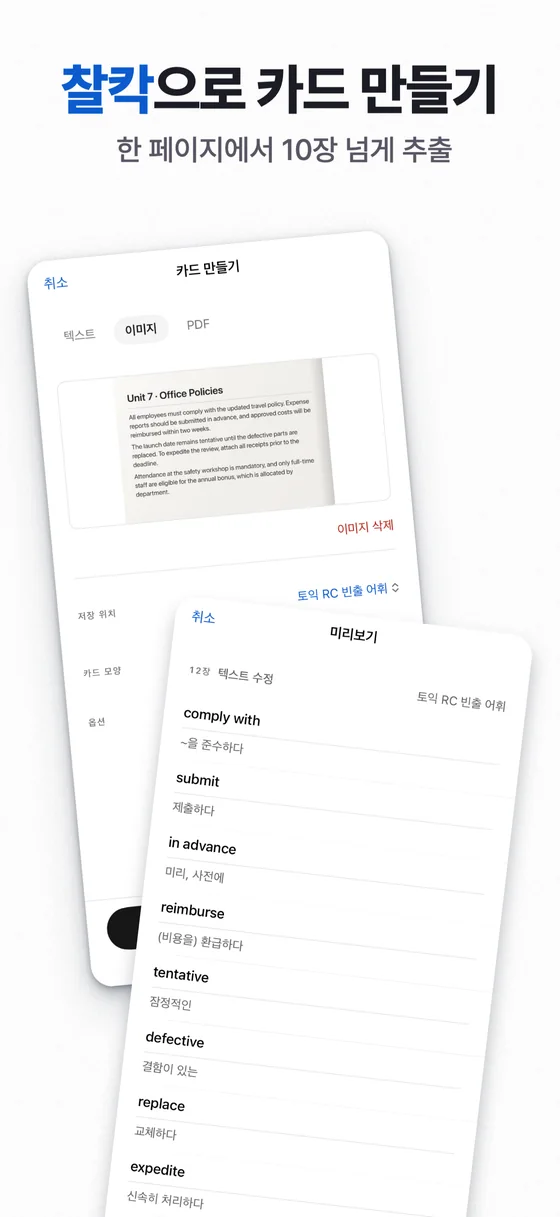
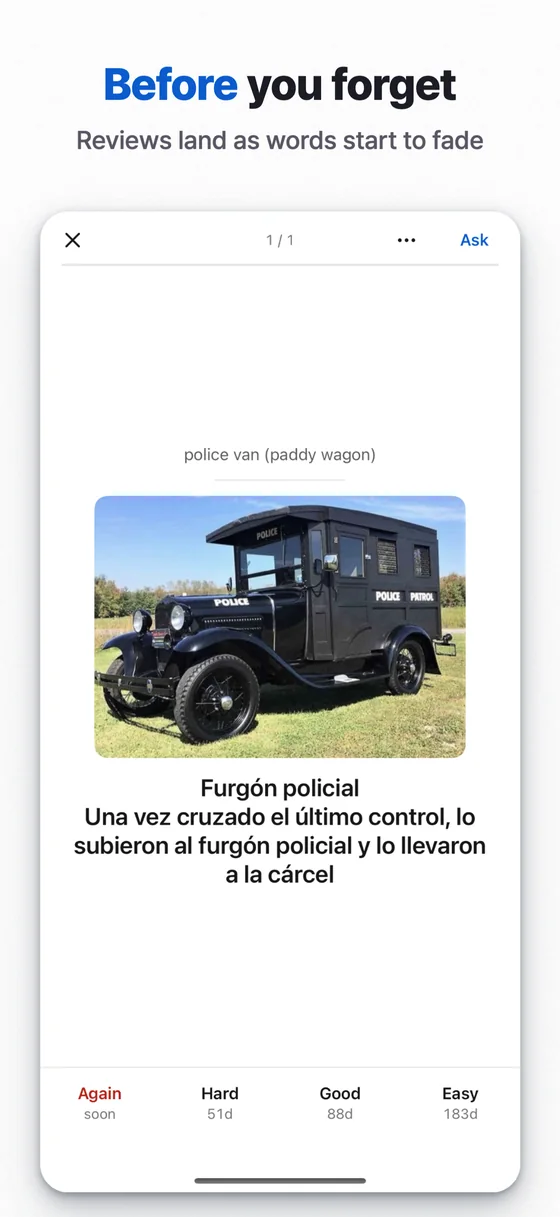
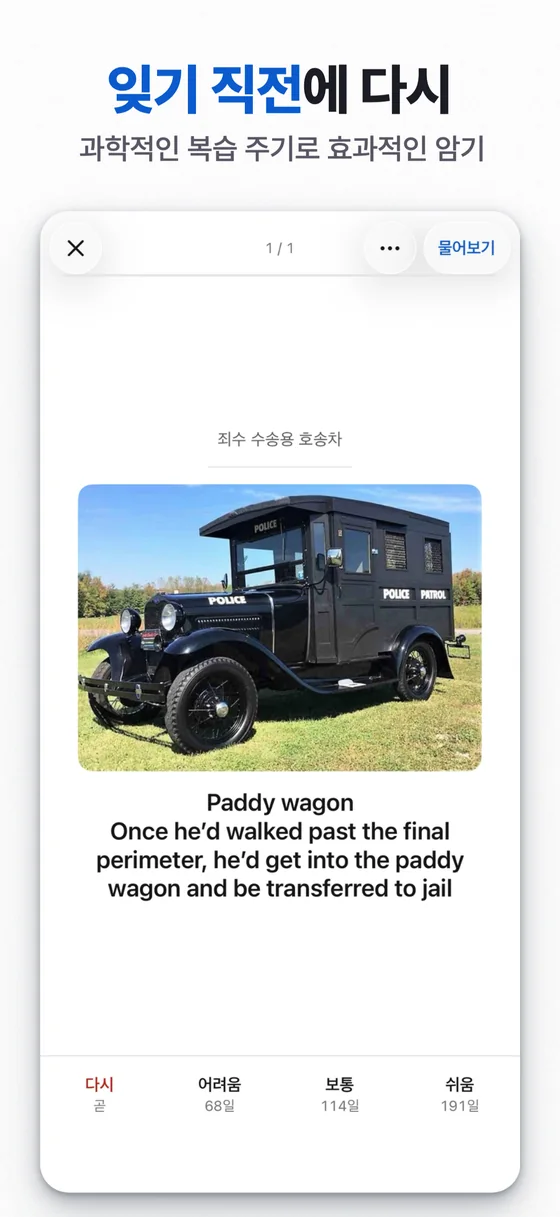
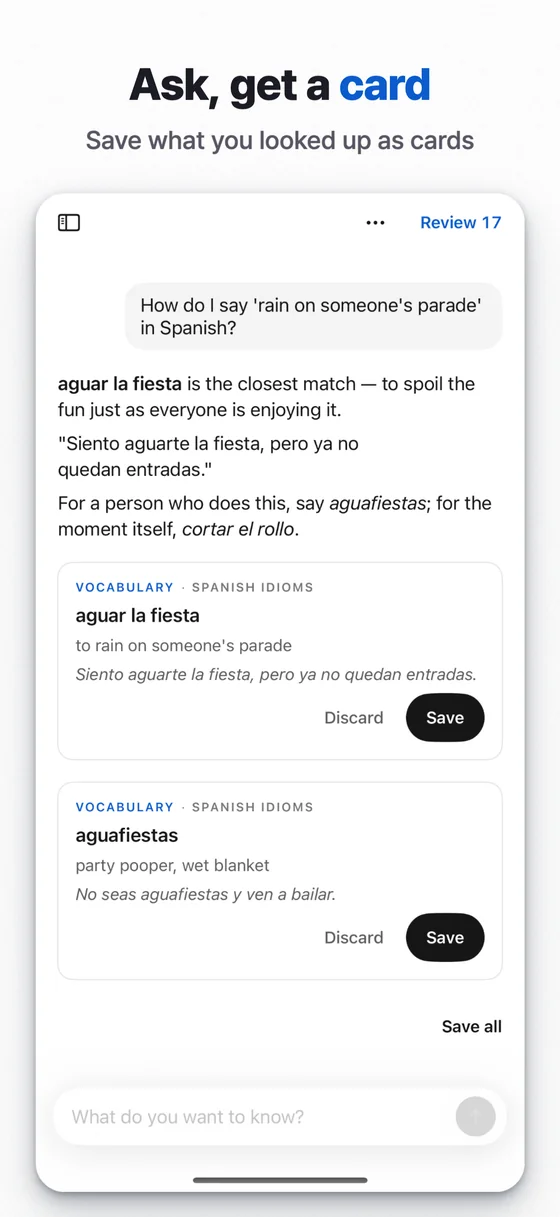
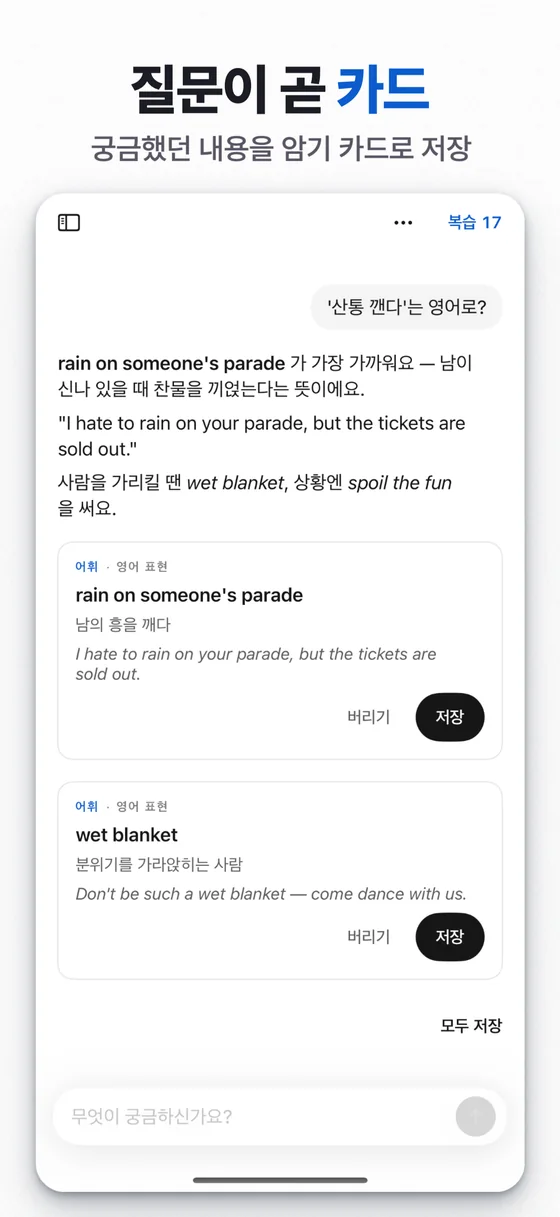
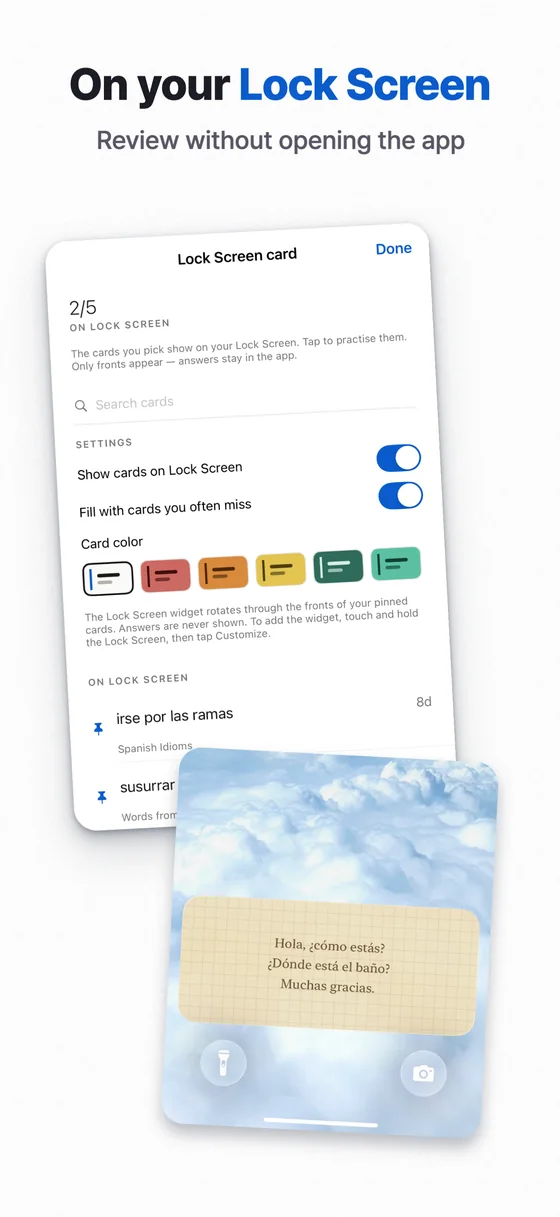
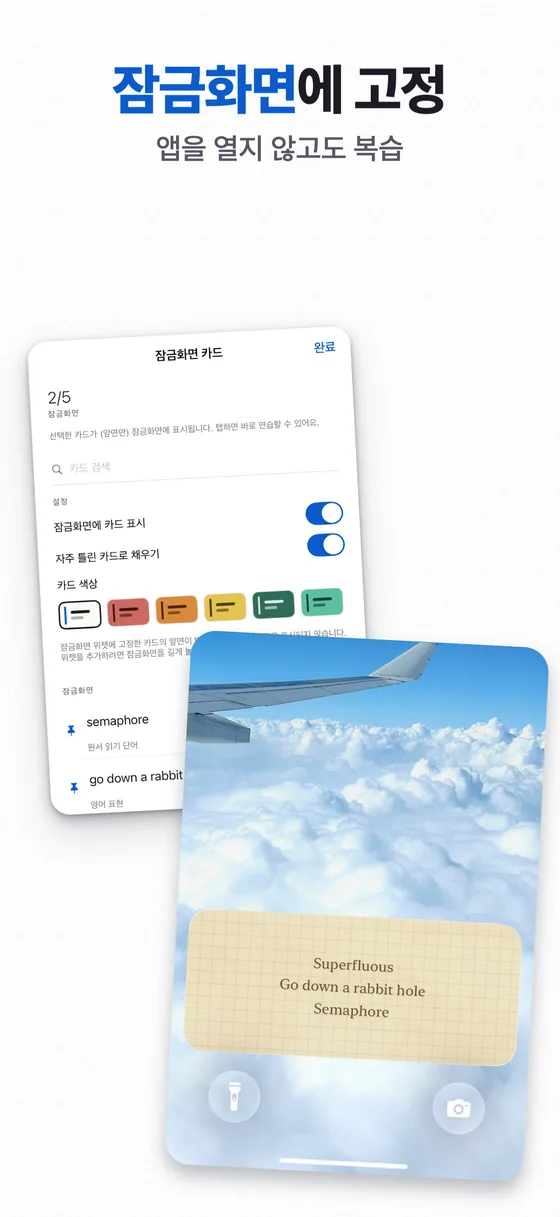
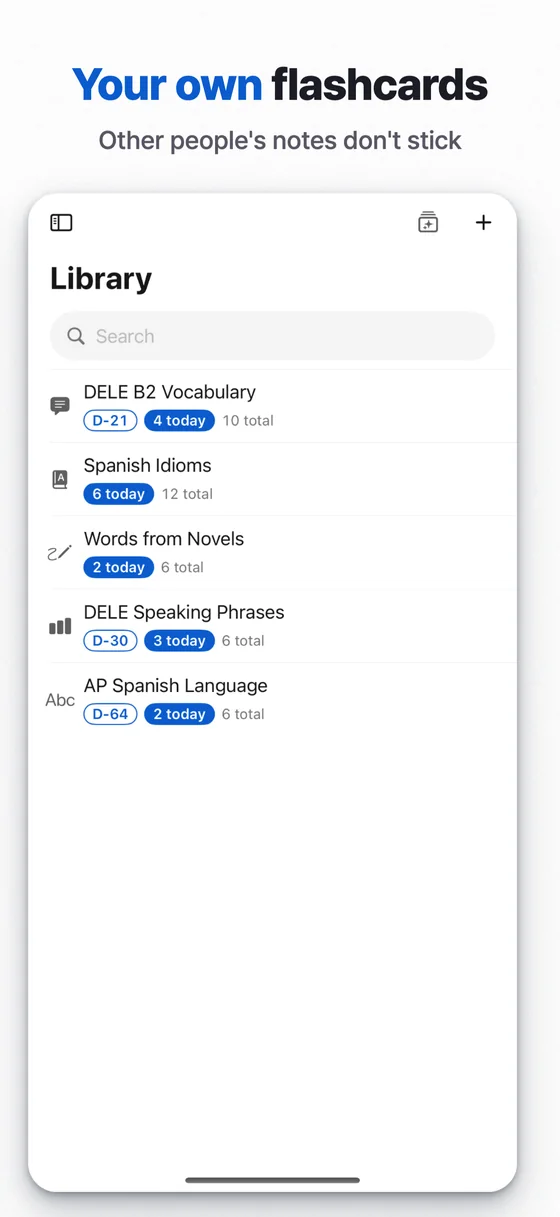
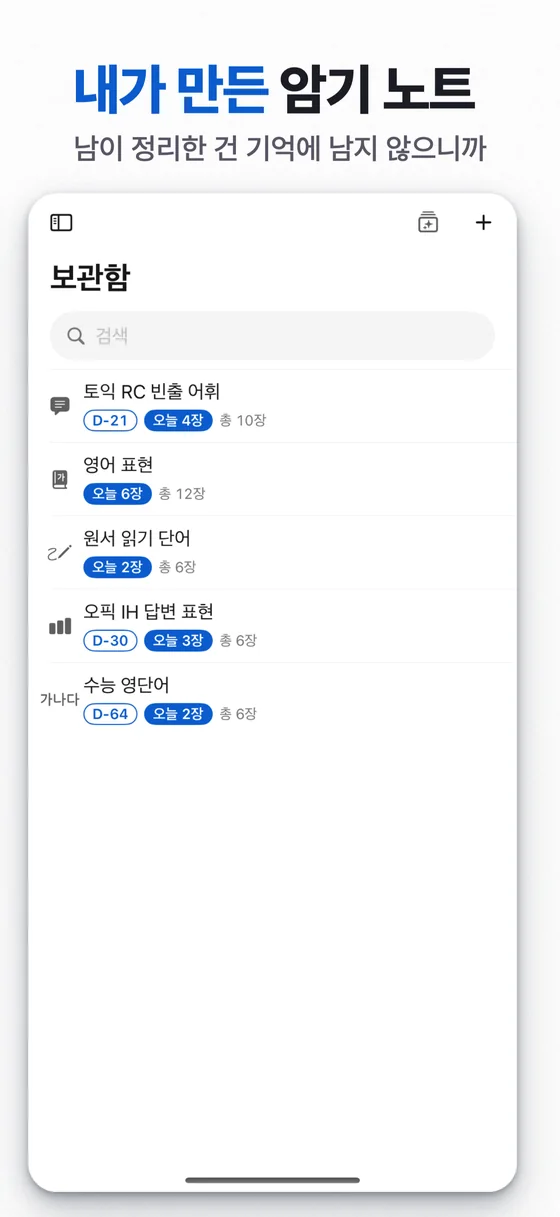
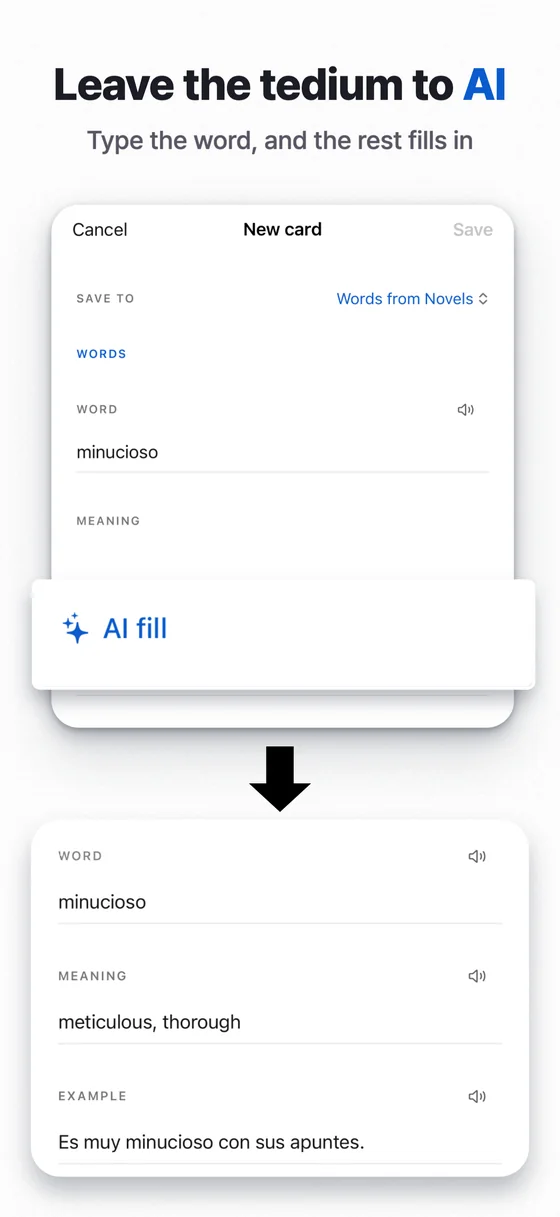
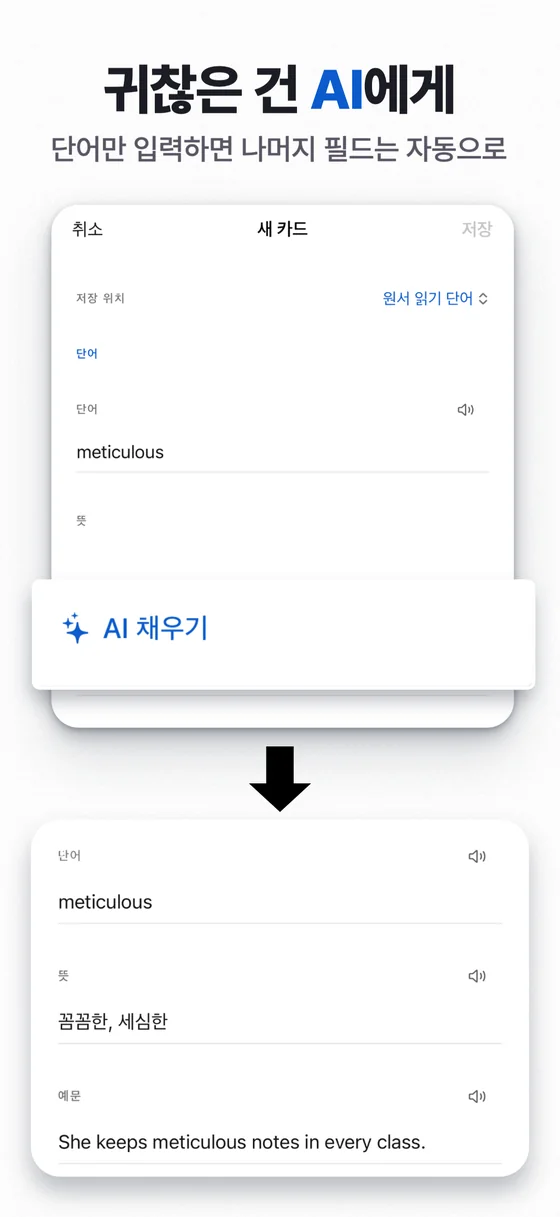
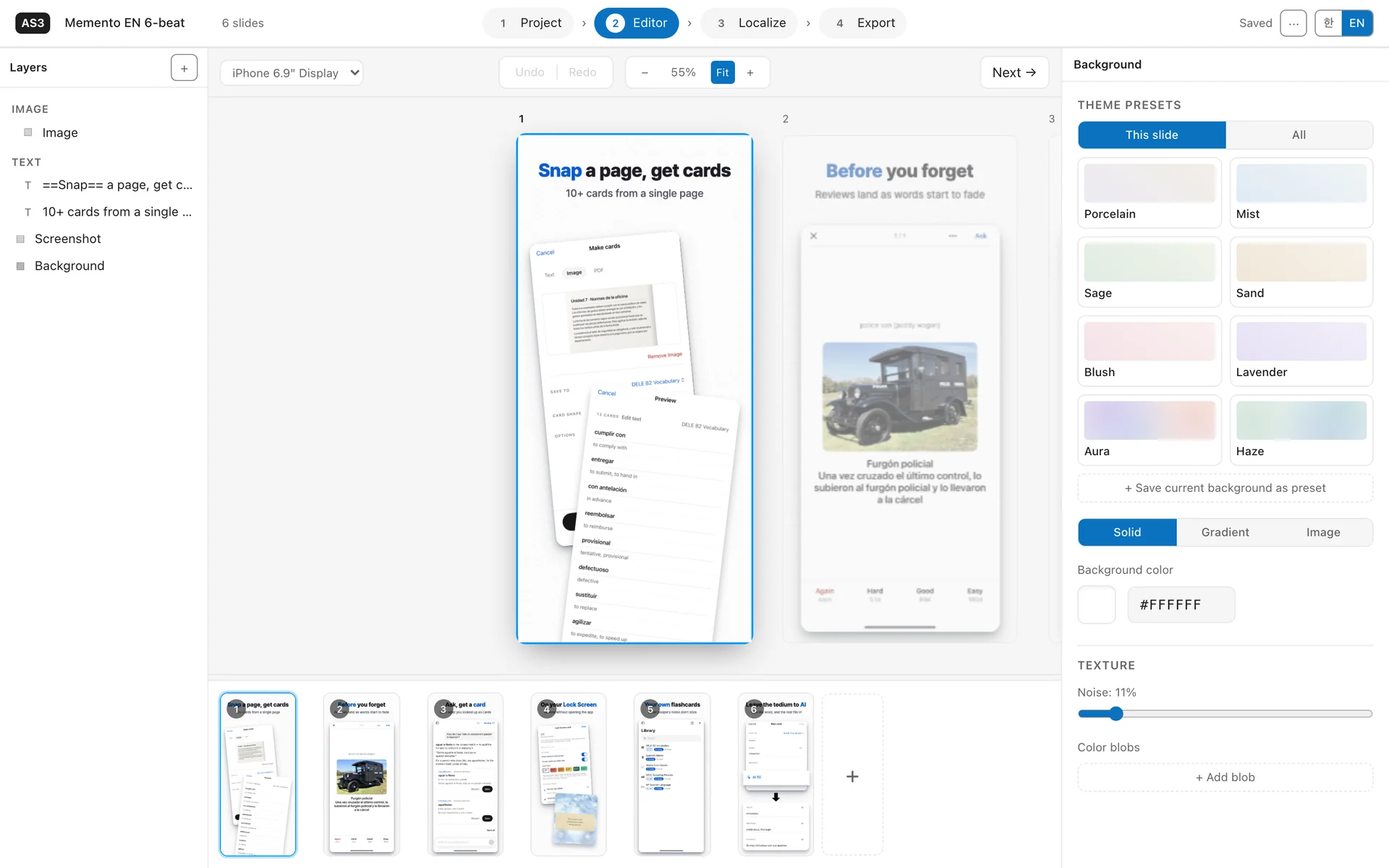
Every slide on one canvas
Your slides sit side by side on one board, so you edit with the whole set in view. The inspector follows whatever you select, and the layer list picks any object in a click.
Your agent edits the project you have open
Connect over MCP and an agent like Claude Code reads the open project, writes and translates captions, renders a slide to check the result, then saves. Every change shows up on the canvas you're looking at.
Prefer files? The repository's headless pipeline renders a manifest and a folder of screenshots to PNGs with no window, then finds and fixes its own layout problems.
Connect an agent$ claude mcp add screenshot-studio \ -- npx -y screenshot-studio-mcp> Fill in the Korean captions and show me slide 1 live_list_untranslated 12 strings to translate live_patch 12 setText ops applied live_view slide 1 (ko) live_save saved Memento.studio.zip
Captions in one table, screenshots by file name
Every caption lives in one slide-by-language table. Let the agent fill the gaps, or export a CSV or JSON
template, translate it and import it back. Per-language screenshots find their slide from the name alone:
01-home.ja.png.
All languages share one layout, and you can still nudge position or size for just one of them.
Read the localization guide| Slide | English | 한국어 |
|---|---|---|
| 1 | Snap a page, get cards | 찰칵으로 카드 만들기 |
| 2 | Before you forget | 잊기 직전에 다시 |
| 3 | Ask, get a card | 질문이 곧 카드 |
| 4 | On your Lock Screen | 잠금화면에 고정 |
Exported at App Store Connect sizes
Every slide in every language renders at the exact resolution of its upload slot, with the alpha channel
stripped so uploads don't bounce, into a folder laid out as en/iphone/01.png. Export a
fastlane folder instead and a single upload.sh sends it.
- iPhone 6.9″1320 × 2868
- iPhone 6.5″1242 × 2688
- iPad 13″2064 × 2752
- iPad 11″1668 × 2388
And the rest of the toolbox
Magnifier highlights
Float a zoomed-in card of part of the screen above the device. Its position and leader line place themselves.
Laurel badges and marks
Rating badges, sparkles, and hand-drawn circles and arrows as single-color vector marks.
Two-page panoramas
Join two neighboring slides into one scene that carries across as people swipe.
Emphasis markers
Words wrapped
==like this==draw in the emphasis style, and the markers survive translation.Rotate and crop the device
Tilt the device, crop the screenshot by dragging an edge, or let it bleed off the canvas.
Type and backgrounds
16 curated typefaces, gradient text, gradient or image backgrounds, and grain.
A project is one file
One
.studio.zipholds the project and its screenshots. Save with ⌘S, and get unsaved work back after a crash.Start from a template
Begin with a designed starter set, or save your own design as a template for the next app.
iPhone and iPad
The device type follows each screenshot's shape; pick the size slot in the editor.
It all stays on your Mac
No account, no sign-in. Your screenshots and projects never leave your Mac, and the only request the app makes is an update check you can switch off.
Download
Get the .dmg from GitHub Releases. One file runs on both Apple silicon and Intel Macs.
Move to Applications
Open the disk image and drag the app into your Applications folder.
Launch
The app is notarized by Apple, so it opens straight away with no warning.
Guides and blog
Guides
- How to use the studioThe full workflow, from first screenshot to uploaded set
- Let an AI agent edit your screenshotsConnect Claude Code over MCP to translate, patch and check
- App Store screenshot sizes (2026)Every required iPhone and iPad resolution and format rule
- Localizing App Store screenshotsA workflow that scales past three languages
- Uploading with fastlane deliverFolder layout, API keys and a screenshots-only Deliverfile
- Taking iOS Simulator screenshotsThe simctl one-liner, the 9:41 status bar and every locale
- Screenshot captions that convertBenefit-first headlines that survive thumbnail size
Make your next release's screenshots here
Design the slides once, and get App Store Connect-ready PNGs for every language.